An external hard drive may stop appearing because of a damaged USB cable, insufficient power, a missing drive letter, file-system corruption, or a physical failure inside the drive. The correct response depends on where the drive appears and whether it makes unusual noises.
If the external hard drive contains important files, don’t format, initialize, or repair it immediately. Windows may suggest these actions simply because it cannot read the existing file system. Accepting the suggestion can complicate data recovery.
Start with safe connection checks. If the drive clicks or beeps, repeatedly disconnects, or doesn’t appear in Disk Management or Disk Utility, stop testing and arrange a professional diagnosis.
If your external HDD or SSD is no longer detected, contact mService Sweden AB for professional external hard drive recovery in Stockholm. We diagnose undetected, dropped, formatted, and physically damaged drives using PC-3000 equipment and Class 100 cleanroom facilities.
Why Is My External Hard Drive Not Showing Up on My PC?
An external hard drive can receive power without becoming fully accessible. The indicator light may turn on, and the platters may spin, but Windows may still not show the drive in File Explorer.
Common causes include:
- Damaged USB cable
- Faulty USB port
- Insufficient USB power
- Failed power adapter
- Missing drive letter
- Outdated USB driver
- Damaged external enclosure
- Failed USB bridge board
- Corrupted partition table
- Unsupported file system
- Firmware failure
- Circuit-board damage
- Read/write head failure
- Motor failure
- Physical impact
- Liquid damage
A light turning on only confirms that some power reaches the enclosure. It doesn’t prove the computer can communicate with the internal storage device.
External Hard Drive Detection Problems at a Glance
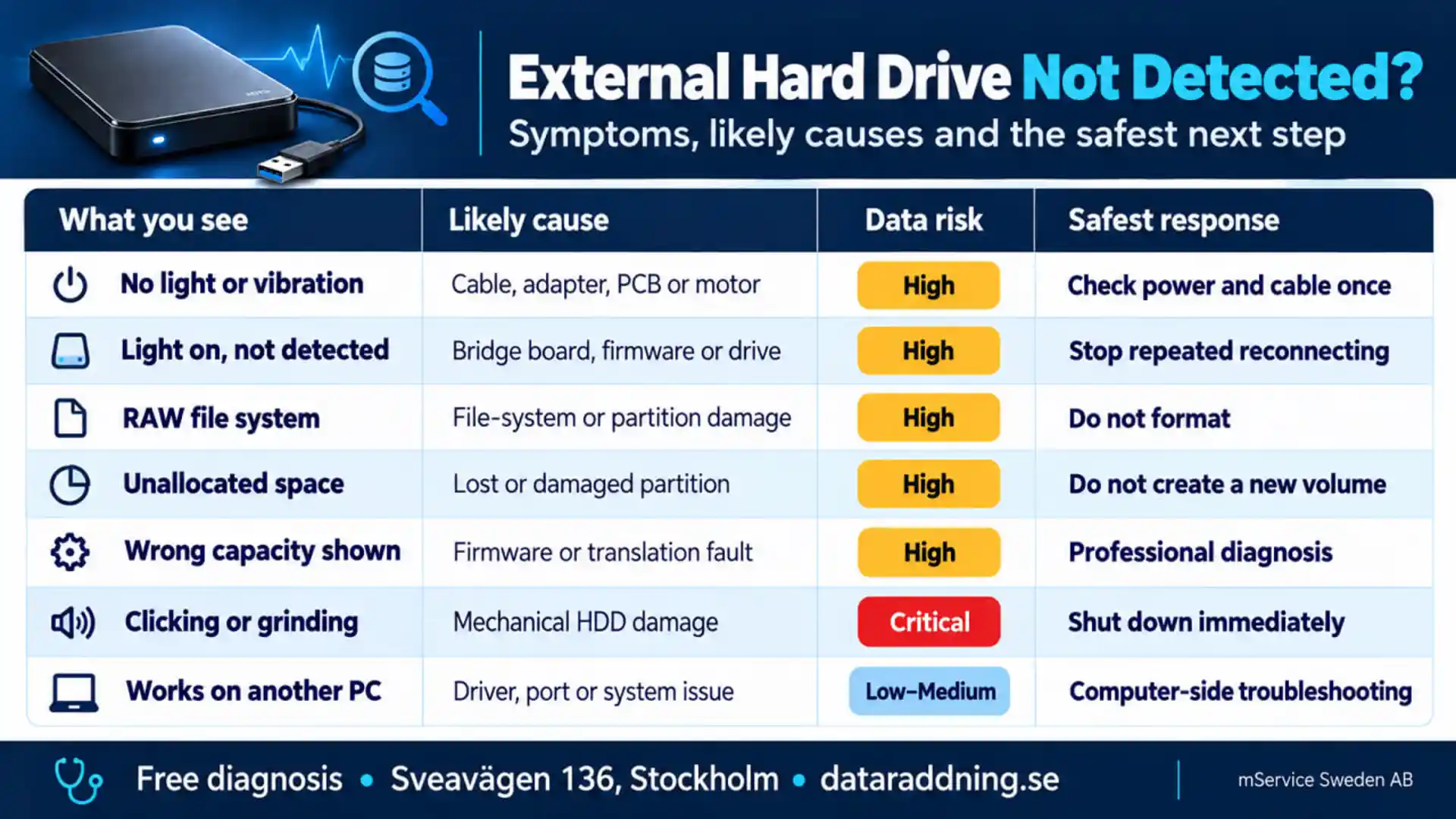
How Do I Fix My External Hard Drive Not Detected?
Begin with the safest checks. Stop as soon as the drive shows signs of physical failure.
Check the USB connection
Disconnect the drive and inspect the cable and connectors for bending, looseness, or visible damage. Test one known-compatible replacement cable.
Cable failure is particularly common with portable drives that are frequently connected and disconnected.
Try another USB port
Connect the external hard drive directly to another USB port on the computer. Avoid an unpowered USB hub during testing.
A desktop computer may provide more stable power through its rear motherboard ports than through front-panel ports.
Check the power adapter
Desktop external hard drives often require a separate power adapter. Confirm that the adapter has the correct voltage, amperage, and connector.
Don’t test a random adapter just because the plug fits. An incorrect power supply can damage the enclosure or drive electronics.
Test another computer
One controlled test on another computer can help separate a computer-side problem from a drive-side problem.
Detection on another computer points towards:
- USB driver problem
- Operating-system issue
- Faulty original port
- Power-management setting
- File-system compatibility
If no computer detects it, the issue is more likely an enclosure, electronic, firmware, or internal drive failure.
Western Digital also recommends checking another USB port and computer because a port may not provide enough power for the drive.
How Can You Make an External Hard Disk Detectable?
Next, check whether the computer can see the physical device even though File Explorer or Finder cannot display its files.
Check Disk Management on Windows
Press Windows + X and select Disk Management.
Look for the external drive by its capacity. It may appear as:
- Healthy partition without a letter
- Offline disk
- RAW partition
- Unallocated space
- Unknown disk
- Not initialised
- Incorrect capacity
A missing drive letter may prevent an otherwise healthy partition from appearing in File Explorer. Assigning a new letter can solve that specific problem.
However, don’t initialize, format, or create a new volume if the drive contains files you need.
Check Device Manager on Windows
Open Device Manager and expand:
- Disk drives
- Universal Serial Bus controllers
- Portable devices
Detection in Device Manager but not Disk Management may point towards a driver, enclosure, firmware or communication problem.
Check Disk Utility on macOS
Open Disk Utility and select View > Show All Devices.
The external drive may appear as a physical device without a mounted volume. Do not select Erase when you need the existing data.
Check System Information on macOS
Open System Information and review the USB section. If the enclosure appears under USB but the physical disk doesn’t show up correctly in Disk Utility, the computer may be detecting only the USB interface.
This distinction appears frequently in forum cases: the USB bridge is visible, but the internal storage device remains inaccessible.
What Does It Mean If the Drive Appears in Disk Management but Not File Explorer?
This usually means Windows can detect the physical storage device but cannot mount an accessible volume.
Possible causes include:
- Missing drive letter
- Offline disk status
- Corrupted partition
- RAW file system
- Unsupported file system
- Damaged partition table
- Encrypted volume
- File-system errors
You can safely correct a missing drive letter when the partition is otherwise healthy. A RAW, unallocated, or not-initialized status requires more caution.
Do not assume that “unallocated” means empty. It may contain valuable data behind a damaged partition structure.
What Does “You Need to Format the Disk” Mean?
Windows displays this message when it detects the storage device but cannot read its file system.
Possible reasons include:
- File-system corruption
- Unsupported Mac or Linux format
- Damaged partition
- Interrupted file transfer
- Unsafe disconnection
- Developing bad sectors
- Encryption
- Physical drive failure
Formatting creates a new file system. It doesn’t repair the original data structure or recover existing files.
If the files matter, select Cancel.
Why Does My External Hard Drive Show as RAW?
A RAW drive has no file system that Windows can currently recognize. The original file system may be damaged, missing or inaccessible.
Common causes include:
- Unsafe removal
- Power interruption
- Damaged sectors
- Partition corruption
- Malware
- Failed enclosure
- Mechanical instability
Do not run CHKDSK automatically on a RAW drive containing important data. CHKDSK is a repair tool, not a data recovery tool, and it may modify the file-system structure.
Why Does My External Hard Drive Show as Unallocated?
Unallocated status means Windows cannot identify a usable partition in that area of the drive.
This may result from:
- Deleted partition
- Damaged partition table
- Accidental formatting
- Partitioning error
- Bad sectors
- Firmware problem
- Physical drive failure
Do not create a new volume if you need the previous files. A new volume writes new structural information to the drive and may overwrite recoverable metadata.
Why Is My External Hard Drive Detected but Not Opening?
A drive can appear in File Explorer or Finder but freeze, show an error or refuse to open.
Possible causes include:
- Corrupted file system
- Damaged sectors
- Permission problem
- Encryption
- Unstable USB connection
- Failing read/write heads
- Firmware instability
- Severe directory damage
Repeated attempts to open an unstable drive can force it to keep reading damaged areas.
If the drive freezes the computer, disconnects during access, or takes several minutes to display a folder, stop normal use. These may signal physical deterioration.
Why Does My External Hard Drive Keep Disconnecting?
Repeated disconnection may come from the connection, the enclosure, or the internal drive.
Common causes include:
- Loose USB cable
- Damaged connector
- Insufficient power
- USB power saving
- Overheating
- Faulty enclosure board
- Unstable hard drive
- Bad sectors
- Electronic failure
One compatible cable and one direct USB port are reasonable tests. Endless cable swapping and repeated restarts don’t diagnose the issue.
What if the external hard drive is clicking or beeping?
Clicking, grinding, or repeated beeping changes the situation completely. These sounds may indicate physical damage rather than a simple Windows configuration problem.
Possible mechanical problems include:
- Read/write head failure
- Motor obstruction
- Platter damage
- Impact damage
- Head-control failure
- Insufficient startup power
Do not run data recovery software on a clicking drive. Software cannot repair damaged internal components.
If the noise began after the drive fell, disconnect it immediately. Continuing to run it may let damaged heads scratch the platter surface.
What If the External Hard Drive Was Dropped?
A dropped drive may keep working briefly before slowing down, becoming noisy, or being completely undetected.
Impact damage may affect:
- Read/write heads
- Spindle motor
- Platter alignment
- USB connector
- External enclosure
- Circuit board
Do not reconnect a dropped drive simply to “see if it still works” when the files are valuable. The first restart may cause more damage than the original fall.
What If the External Hard Drive Has Water or Liquid Damage?
Do not connect a wet external hard drive to power.
Liquid can damage the USB interface, circuit board, and internal components. Even after the outside appears dry, moisture and residue may remain inside the enclosure.
Recommended precautions include:
- Immediate power disconnection
- No hair-dryer use
- No radiator exposure
- No rice treatment
- No enclosure opening
- Professional damage assessment
Keep the device in its current condition and arrange an examination as soon as possible.
Can a Faulty External Enclosure Cause Detection Problems?
Yes. An external hard drive includes both the internal storage device and a USB interface. The internal disk may remain functional while the enclosure, connector or USB bridge board fails.
Possible enclosure problems include:
- Damaged USB port
- Failed bridge board
- Broken solder joint
- Power-adapter failure
- Damaged internal cable
- Overheated electronic component
Removing the internal drive is not always a safe DIY solution. Some external drives use USB directly on the drive’s circuit board, hardware encryption, or model-specific electronics. mService identifies faulty cables, bridge boards, PCBs, and firmware among the possible causes of an undetected external drive.
Need Professional External Hard Drive Repair?
If your external hard drive is not detected because of a damaged USB connector, faulty enclosure, PCB failure, or another hardware problem, professional diagnosis can help identify the cause. Avoid opening the drive or replacing electronic components without proper testing, especially if it contains important data.
Learn more about our [External Hard Drive Repair] to find the appropriate solution for your device.
Can Data Be Recovered From an Undetected External Hard Drive?
Yes, data recovery may still be possible even when the drive does not appear in File Explorer, Disk Management, Disk Utility, or BIOS.
The recovery method depends on the cause of the failure.
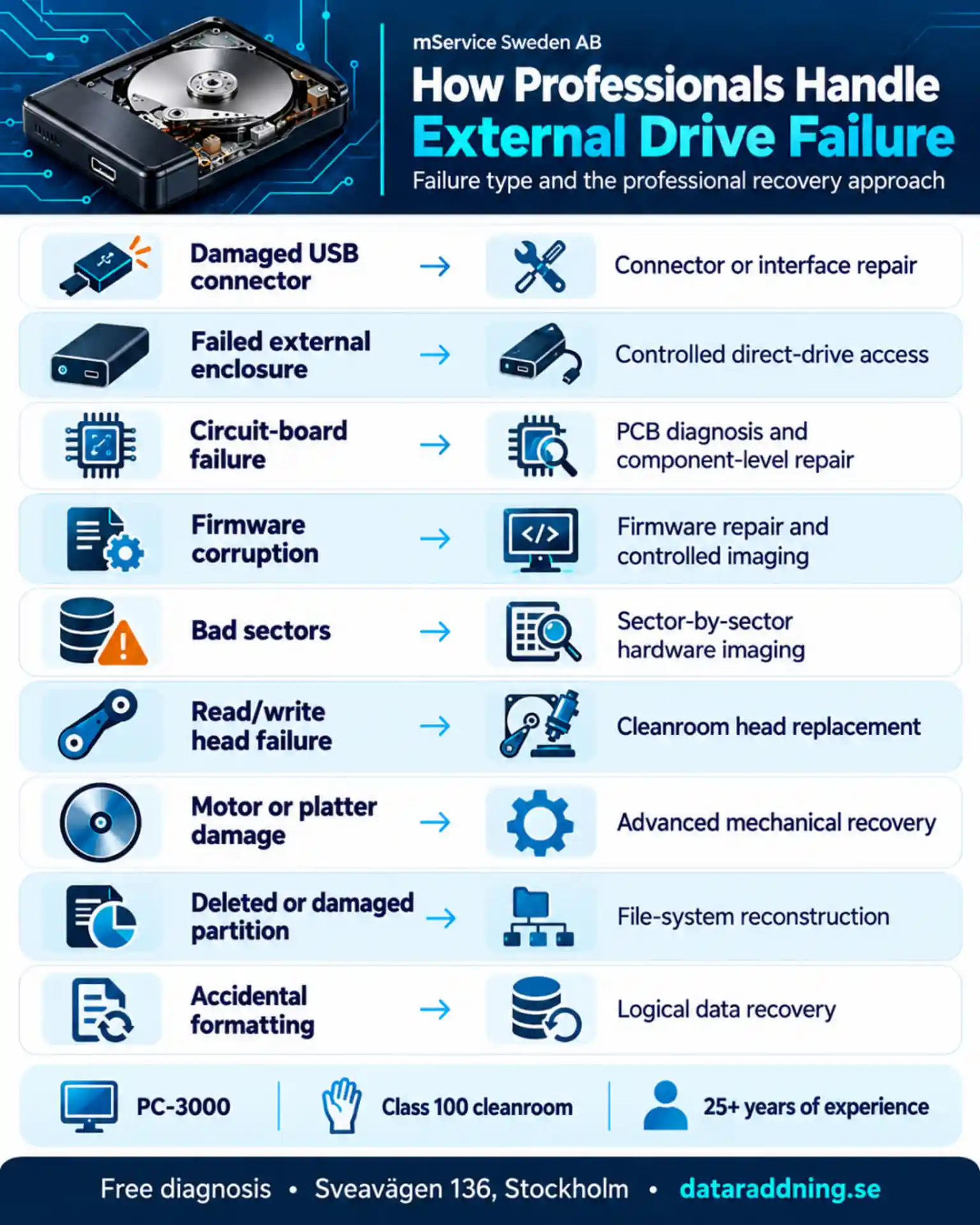
Recovery software requires stable access to the drive. If the operating system cannot detect the physical device with the correct capacity, ordinary software cannot scan it.
Forum advice often reaches the same conclusion: when an external drive is missing from Disk Management or Disk Utility, or shows the wrong capacity, the case is generally beyond normal DIY software.
What Should You Never Do With an Undetected External Hard Drive?
The wrong action can overwrite data or worsen physical damage.
Avoid the following:
- Disk initialisation
- New volume creation
- Drive formatting
- Repeated CHKDSK attempts
- Repeated power cycles
- Long surface scans
- Drive disassembly
- Freezer treatment
- Physical tapping
- Random circuit-board replacement
- Recovery onto the same drive
- Operating-system installation
“Initialize” sounds harmless. It is not a neutral detection step. It writes new disk information and should not be used when the drive contains data you need.
How Do You Safely Troubleshoot an Undetected External Drive?
The safe troubleshooting path is short:
- Test one compatible USB cable.
- Test one direct USB port.
- Confirm the correct power adapter.
- Check Disk Management or Disk Utility.
- Test one other computer.
- Stop if you hear unusual noise, experience freezing, or the drive remains undetected.
These checks rule out a simple connection problem—not to keep a failing drive running until it finally disappears for good.
When Should You Contact an External Hard Drive Recovery Specialist in Stockholm?
Professional diagnosis is appropriate when:
- No detection on multiple computers
- Disk Management absence
- Disk Utility absence
- Incorrect reported capacity
- Clicking or grinding
- Repeated disconnection
- Drop or impact damage
- Fire or liquid damage
- RAW or inaccessible partition
- Critical personal files
- Important company data
- Previous unsuccessful recovery attempts
The data’s value should guide the decision. Replaceable movies or games may not justify laboratory recovery. Family photographs, client records, accounting files, and original creative work are different.
External Hard Drive Recovery in Stockholm and Across Sweden
An external hard drive that isn’t detected may have a simple cable issue, but it may also have failed electronics, damaged firmware, unstable read/write heads, or serious mechanical damage. Guessing becomes expensive when every unsuccessful attempt reduces the chance of recovery.
With more than 25 years of experience, PC-3000 technology, and Class 100 cleanroom facilities, mService Sweden AB provides professional data recovery from undetected, dropped, formatted, wet, and physically damaged external hard drives in Stockholm and across Sweden.
If your external HDD or SSD no longer appears, repeatedly disconnects, or makes unusual noises, stop using it and contact us. We will examine the device, identify the real cause of the failure, and choose the safest recovery method for your files.
Frequently Asked Questions About Undetected External Hard Drives
These questions reflect common concerns raised by users on Reddit and technical support forums, including missing drive letters, RAW partitions, powered drives that aren’t detected, and uncertainty about formatting.
How do I fix my external hard drive not detected?
Start with a compatible cable, a different USB port, and the correct power adapter. Then check Disk Management on Windows or Disk Utility on macOS.
If the drive clicks, freezes, reports the wrong capacity, or remains completely undetected, stop troubleshooting and request professional diagnosis.
How do I fix “No hard drive detected”?
First determine whether the message refers to an internal system drive or an external drive. For an external drive, check the cable, power supply, USB port, and the operating system’s disk tools. If it’s still missing after these checks, it may indicate an electronic, firmware, or mechanical failure.
How can I make an external hard disk detectable?
A healthy drive may just need a different USB port, a compatible cable, or a different drive letter. You can’t safely make a physically failed drive detectable through a Windows setting. It may require hardware repair or access to a controlled laboratory.
Why is my external hard drive not showing up on my PC?
Common causes include a missing drive letter, damaged cable, insufficient power, USB driver problem, corrupted partition, failed enclosure, or internal drive failure. If it detects on another computer, the problem is usually with the original PC.
Why does my external hard drive light turn on but nothing happens?
The light confirms power to at least part of the device. The USB bridge, firmware, circuit board, motor, or internal hard disk may still be unable to communicate with the computer.
Why does my drive appear in Device Manager but not File Explorer?
Windows may detect the hardware but not find a mountable volume. The drive may lack a drive letter, use an unsupported file system, have a damaged partition, or show as RAW.
A missing letter is often simple. RAW or unallocated status requires caution.
Should I initialize an external hard drive that contains files?
No. Initialization writes new disk information and may complicate recovery. It is suitable for a genuinely new and empty drive—not an old drive that suddenly became inaccessible.
Should I format an external hard drive that Windows cannot read?
Not when you need the existing files. Formatting creates a new file system and does not recover the original data.
Can CHKDSK fix an undetected external hard drive?
No. CHKDSK requires access to a recognized volume. It cannot repair failed electronics, firmware, or mechanical components. On an unstable drive, it may also modify file-system information and put it under more stress.
Why does my external hard drive appear as RAW?
The file system may be corrupted, unsupported, or unreadable because of damaged sectors. Do not format the drive if you need its contents.
Why does the drive show zero bytes or the wrong capacity?
Incorrect capacity may indicate firmware, controller, or translation problems. Assigning a drive letter or formatting the disk usually won’t fix this.
Can I recover data if the external hard drive is not detected?
Possibly. Professional recovery may address damaged connectors, failed PCBs, corrupted firmware, bad sectors, and mechanical failures. Recovery chances depend on the damage and any previous attempts.
Can I remove the drive from its enclosure?
Not safely in every case. Some external drives use integrated USB electronics, hardware encryption, or model-specific bridge boards. Opening the enclosure can also void the warranty or cause additional damage.
Why does my external hard drive work on one computer but not another?
The original computer may have a USB driver, port, power-management, or file-system compatibility problem. Copy important files while the drive remains accessible, then diagnose the affected computer separately.
Why does my external hard drive keep connecting and disconnecting?
Common causes include an unstable cable, insufficient power, a damaged USB connector, overheating, enclosure failure or an unstable internal drive. Repeated disconnection during file transfers is a warning sign.
Is a clicking external hard drive recoverable?
Recovery may be possible, but clicking usually indicates physical failure. Turn the drive off and avoid software scans or repeatedly connecting it.
Can a dead external hard drive be repaired and used again?
Some components can be repaired temporarily, but a drive that has suffered serious electronic or mechanical failure should not return to normal storage use. The main purpose of repair is safe data recovery.