
An external hard drive not showing up on a Mac can result from a connection problem, Finder settings, an unmounted volume, encryption or a fault in the drive itself. Start by checking whether it appears in Disk Utility. If it contains your only copy of important files, do not erase or reformat it to make it visible.
For a photographer, a missing drive may mean an inaccessible wedding shoot. For a studio, it could interrupt an edit with a client deadline approaching. The first priority is to establish what your Mac can detect without making unnecessary changes to the original data.
This guide explains how to distinguish a visibility issue from a storage failure, which checks are reasonable to try, and when to seek external hard drive recovery in Stockholm or elsewhere in Sweden.
Why Is My External Hard Drive Not Showing Up on Mac?
Your Mac must recognise the connected hardware, identify a readable volume, and make that volume available before you can browse its files in Finder. A problem at any of these stages can leave the drive apparently missing.
Possible causes include a damaged cable, an unsuitable adapter, insufficient power, hidden external disks in Finder, a volume that has not mounted, an unsupported file system, or damaged storage hardware.
Where the drive appears is more useful than whether its light turns on.
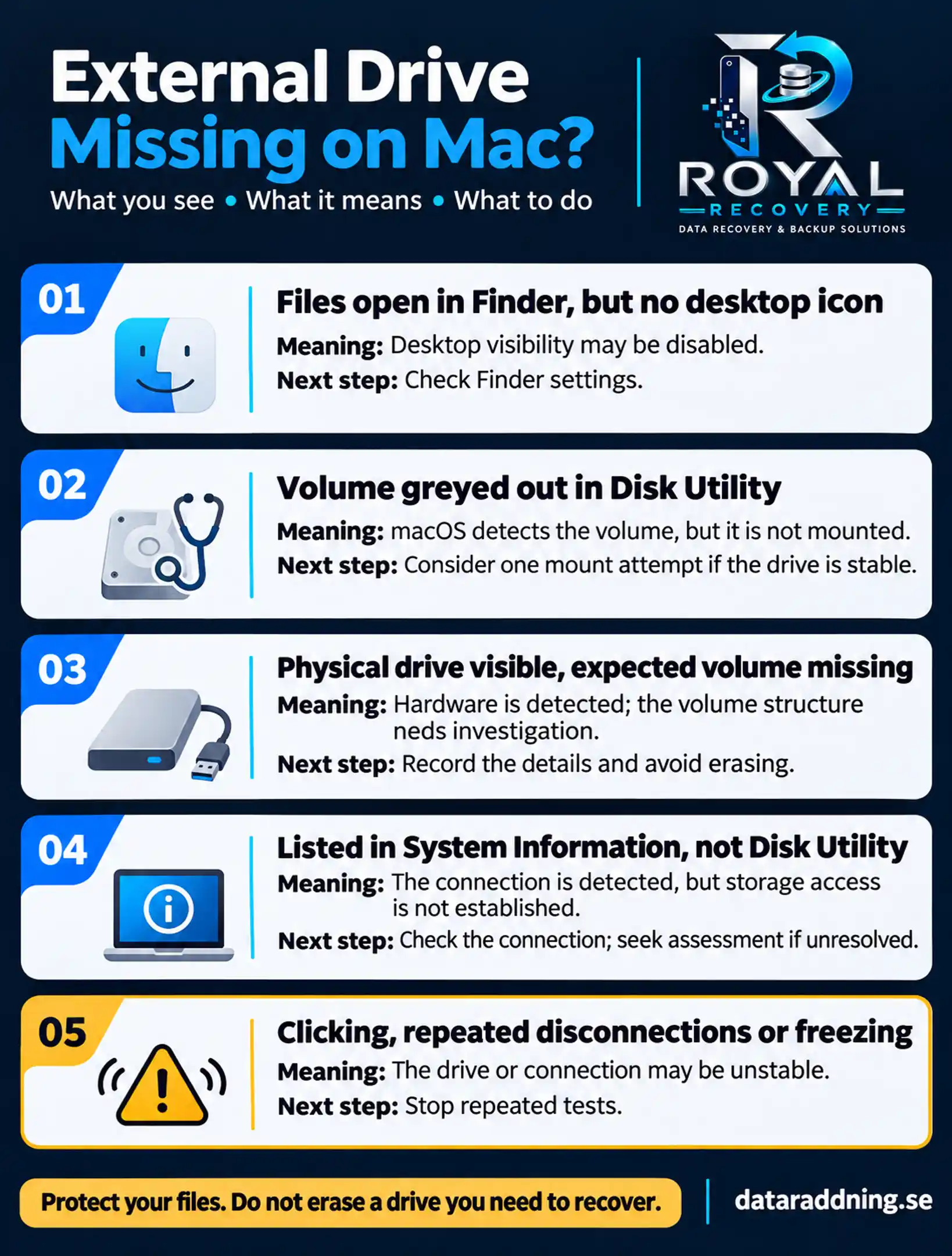
These observations help narrow the problem. They do not, by themselves, establish whether the files are recoverable.
Before You Start: Protect Your Photos, Videos and Studio Projects
First, establish whether another complete copy exists. Check your backup drive, Time Machine history, cloud storage, and original camera cards before attempting repairs.
For creative work, a visible preview is not proof that the original file is safe. A Lightroom catalogue may display thumbnails while the RAW photographs remain on the disconnected drive. A video project may open while its source clips are offline.
Identify the material you cannot replace:
- Original RAW photographs and camera footage
- Lightroom catalogues and editing sidecars
- Final Cut Pro libraries and linked media
- Audio sessions and original recordings
- Client delivery folders and project documents
Avoid importing new material, rebuilding libraries or saving recovered files onto the affected drive.
If a simple connection correction restores stable access, copy the most important files to a separate, healthy device first. Open a selection of copied photographs, videos and project files to check them. If copying produces read errors, severe delays or disconnections, stop rather than repeatedly retrying the same folders.
Check the USB Cable, Connections and Power Supply
For a drive with no unusual noises or known physical damage, begin with the connection.
- Connect directly to the Mac. Temporarily remove docks, extension cables and hubs where possible.
- Use a known-good, compatible data cable. A matching connector alone does not establish compatibility.
- Try another suitable port. Use an appropriate adapter if your Mac requires one.
- Check the external power supply. Desktop drives may require their own adapter. Use the manufacturer-specified supply.
- Unlock your Mac and check for an accessory approval prompt.
Apple recommends checking cables, power and direct connections when an external device does not work. On Mac laptops with Apple silicon, a new USB or Thunderbolt accessory may also require approval before data access is allowed.
If the drive remains quiet and stable, one controlled test on another compatible Mac can help identify whether the problem follows the drive. Do not continue moving it between computers if it clicks, repeatedly disconnects or has recently been dropped.
External Hard Drive Not Showing Up in Finder: Check Visibility Settings
A working drive can be hidden from the desktop or Finder sidebar.
To check:
- Open Finder.
- Choose Finder > Settings. Older macOS versions may call this Preferences.
- Under General, select External disks to show them on the desktop.
- Under Sidebar, select External disks.
- Open a Finder window and check Locations.
Apple provides separate settings for desktop icons and sidebar items, so check both.
Changing these options controls visibility. It does not repair a damaged file system or make an undetected device readable. If the drive still does not appear, check Disk Utility.
Drive Showing in Disk Utility but Not in Finder
Open Disk Utility using Spotlight, then choose View > Show All Devices.
Look for the external physical device and any volumes listed beneath it. Confirm the identity using its model and approximate capacity, particularly when several backup or project drives are connected.
If the expected volume is greyed out, the drive is quiet and stable, and there are no signs of physical damage:
- Select the volume beneath the external device.
- Click Mount.
- Enter the disk password if requested.
- Check Finder again.
Mounting makes an available volume accessible in Finder.
If mounting fails, record the exact error. Repeated attempts provide little additional information. A physical device listed without its expected volume needs a different assessment from a healthy volume that was simply unmounted.
Do not create a replacement volume or click Erase when you need the existing files.
External Hard Drive Not Showing Up in Disk Utility
First confirm that View > Show All Devices is enabled. Otherwise, you may be looking at a limited view.
If the drive remains absent, inspect System Information:
- Hold Option and open the Apple menu.
- Select System Information.
- Check the relevant USB or Thunderbolt section.
- Look for an entry associated with the external device.
Apple recommends System Information to check whether connected hardware is detected.
An enclosure appearing here does not prove that the internal drive is readable. It may identify only part of the connection.
If a compatible cable, direct connection, and correct power supply do not resolve the problem, ordinary recovery software may have no accessible storage device to scan. Seagate’s external-drive troubleshooting guidance also distinguishes hardware detection from access to the drive’s volume.
Record what each utility shows and seek an assessment rather than opening the enclosure or replacing circuit boards.
Hard Drive Light Is On, but the Mac Does Not Recognise It
An illuminated light indicates some power or activity. It does not confirm that the drive can communicate correctly or read stored files.
One easily overlooked cause is accessory approval. Apple notes that an accessory may receive power even when data access has been denied. Unlock the Mac and approve the connection if prompted.
If approval and connection checks make no difference, use Disk Utility and System Information to establish what is actually detected. A spinning drive with no accessible volume still requires investigation.
Avoid treating repeated unplugging and reconnecting as a repair method, particularly when the drive contains the only copy of a client project.
Drive Appears on Mac, but Files Are Inaccessible
A visible drive icon does not guarantee readable files. Note exactly what happens when you open it.
A permissions message may indicate an access-control problem. A password prompt suggests encryption. Long pauses, read errors, or disconnections require greater caution.
If access is stable, select the drive in Finder and choose File > Get Info to inspect its format and permissions. For a shared studio drive, check with its owner or administrator before changing access settings. Apple identifies permissions as one possible reason files on connected storage cannot be accessed.
Also distinguish a drive problem from an application link problem. If Finder can open the original photographs or clips normally but your editing application reports missing media, the application may need to reconnect to the correct file location.
Do not immediately reimport everything or create a new catalogue. First, confirm the originals are present and readable. If opening ordinary folders freezes Finder or disconnects the drive, stop browsing.
Could the Drive Format or Encryption Explain the Problem?
Yes, but the symptom matters.
| Format or condition | What to consider |
| APFS or Mac OS Extended | Mac formats, although damage can still prevent access |
| exFAT or FAT | Supported for cross-platform use |
| NTFS | Normally readable on Mac, with writing restricted unless suitable additional software is used |
| Encrypted external volume | Requires the appropriate password or authorised unlocking method |
Apple distinguishes NTFS write limitations from supported Mac and cross-platform formats. A read-only NTFS drive is a different problem from a drive absent from Disk Utility.
An encrypted external disk may remain locked until its password is entered. Keep the password or recovery information available, but do not include it in a public enquiry form.
If the drive previously worked on this Mac, an explanation based only on format compatibility is incomplete. Record any recent macOS update or change to third-party storage software, then check hardware detection and mounting status before deciding what to do.
First Aid, Recovery Software or Formatting: What About Your Files?
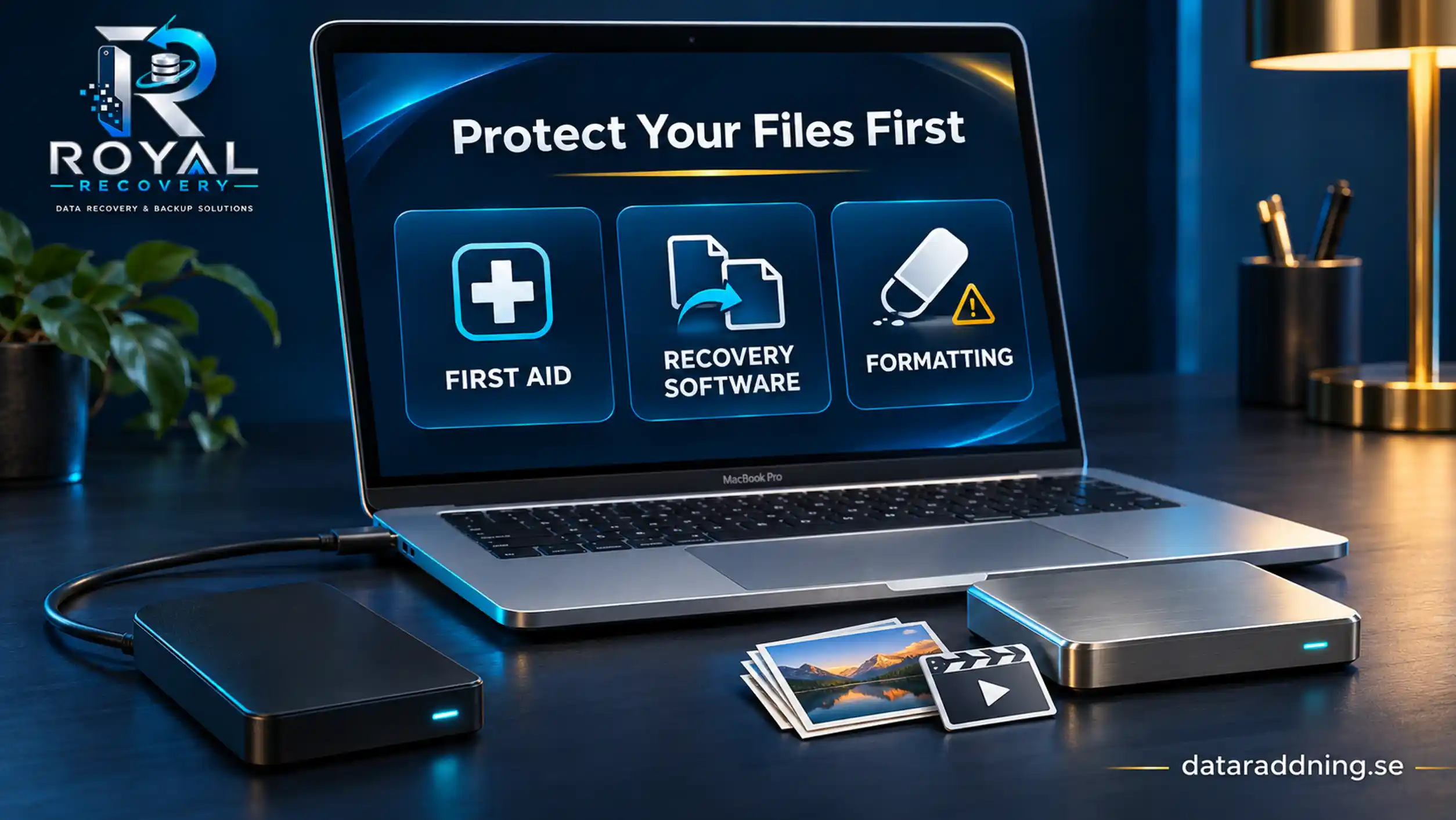
These tools serve different purposes. Choose based on the drive’s condition and whether the data is backed up.
First Aid
First Aid checks and can repair certain formatting and directory-structure errors. Apple states that it cannot detect or repair every disk problem.
Because repairs can alter file-system structures, First Aid should not be the automatic first step for an unstable drive containing irreplaceable files. Where a complete backup exists and the hardware is stable, it may be an appropriate repair option.
Recovery software
Recovery software can help with some logical data-loss cases when the storage remains readable. It cannot repair damaged mechanical components.
For important data, consider assessment and imaging before a lengthy scan. Never install recovery software on the affected volume or save recovered files back to it. Seagate advises using separate destination storage and avoiding utility software when unusual noises suggest mechanical failure.
Formatting
Formatting prepares a file system for use. It does not retrieve your photographs, videos or documents.
Only consider erasing a drive after the required data has been recovered or a separate backup has been verified. A prompt to initialise or erase storage is not confirmation that the drive is empty.
Clicking, Disconnecting or Freezing: When to Stop Troubleshooting
Stop DIY attempts when the drive develops:
- New, repeated clicking or grinding
- Persistent disconnections during access
- Severe delays and repeated read errors
- Freezing whenever folders are opened
- Symptoms following a drop or liquid exposure
Occasional operating sounds can be normal for an HDD. New repetitive noises combined with lost access are more concerning. Seagate identifies repeated clicking as a possible failure symptom and recommends powering down a grinding drive to prevent further damage.
Do not run a surface scan, repeatedly power-cycle the drive or open the sealed HDD mechanism to investigate. For a photographer or studio, the next useful step is to document the incident: what happened, which files matter most and which actions have already been attempted.
External Hard Drive Data Recovery in Stockholm and Across Sweden
When the drive holds irreplaceable photographs, personal archives or unfinished client work, a recovery assessment can help establish the cause before further changes are made.
mService Sweden AB provides external hard drive recovery in Stockholm and serves customers across Sweden. The Stockholm contact address is Sveavägen 136, 113 50 Stockholm. Contact the team before visiting or sending a device to confirm arrangements.
For a Mac-related enquiry, prepare:
- Drive brand, model and capacity
- Mac model and macOS version
- Finder, Disk Utility and System Information observations
- Error messages and unusual sounds
- Details of drops, liquid exposure or interrupted transfers
- Previous repair or recovery attempts
- Priority folders, file types and project deadlines
For photography and studio work, explain which files belong together. Recovering a catalogue without its original photographs, or a project file without its linked footage, may leave the work incomplete.
Recovery cost and timing depend on the fault, the work required, and the condition of the readable data. Ask how recovered files can be checked, particularly RAW images, long video recordings and editing libraries. Seeing a filename alone does not establish that its contents are usable.
If your external hard drive isn’t showing up on Mac and the files are important, contact mService Sweden AB with the symptoms and steps you’ve already taken. You can also review the external hard drive data recovery service before arranging an assessment.
Frequently Asked Questions
Why is my Seagate or WD external hard drive not showing up on Mac?
Check the cable, power, accessory approval and Finder settings first. Then inspect Disk Utility with Show All Devices enabled. The brand alone does not identify whether the problem is connectivity, mounting or hardware failure.
Should I update macOS to make the drive appear?
An update is not a reliable first remedy for an inaccessible drive. Record your current macOS version and check detection first, especially if the problem began after an update or involves third-party storage software.
Can files be recovered when the drive does not appear in Disk Utility?
Recovery may still be possible, depending on the fault. Absence from Disk Utility does not prove that the files are gone, but it can prevent ordinary software from accessing the storage.
What if the drive becomes visible again after changing the cable?
If access is stable, copy essential files to another healthy device and check the copies. Stop if the drive begins disconnecting, producing read errors or becoming severely slow.
How can I arrange recovery if I live outside Stockholm?
Contact mService Sweden AB before sending the drive. Describe the symptoms, confirm the current delivery procedure and request packing instructions. Keep the device disconnected while awaiting guidance.