A failed hard drive does not always announce itself with smoke, a burning smell, or a completely dead computer. Often, the first warnings are much quieter: slower file access, corrupted documents, repeated freezing, or a clicking sound that wasn’t there before.
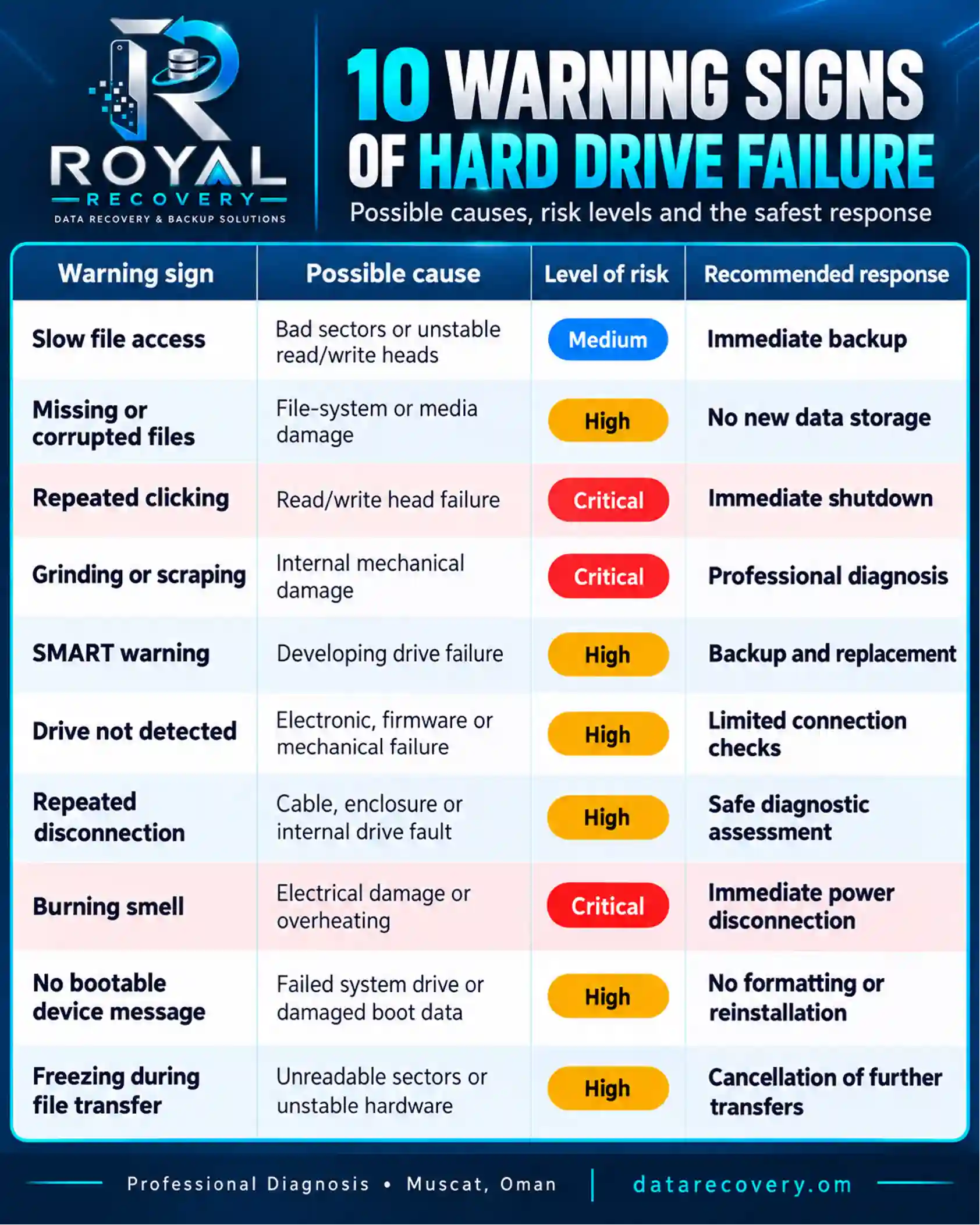
The clearest signs of a failing computer hard drive include unusual mechanical noises, missing files, extremely slow performance, repeated system crashes, SMART warnings, and failure to appear in BIOS or the operating system.
If the hard drive contains important personal or business data, your next decision matters. Repeated restarts, repair programs, and long diagnostic scans can turn a recoverable problem into permanent data loss. If you suspect mechanical damage, switch off the device and arrange a professional diagnosis.
What Are the Main Signs of a Failing Computer Hard Drive?
A hard drive can develop logical, electronic, firmware-related or mechanical problems. Although the symptoms sometimes overlap, the following warning signs deserve immediate attention:
- Repeated clicking noises
- Grinding or scraping sounds
- Unusually slow file access
- Frequent computer freezing
- Unexpected system crashes
- Missing or corrupted files
- Read and write errors
- SMART health warnings
- Intermittent drive detection
- Startup and boot failures
- Excessive drive temperature
- Burning smell or visible damage
One isolated symptom does not always confirm hard drive failure. A computer can become slow because of malware, insufficient memory, or an operating-system problem. However, several symptoms appearing together usually indicate a more serious storage issue.
What Happens If a Computer’s Hard Drive Burns Out?
The expression “hard drive burns out” commonly describes a drive that suddenly stops working. In technical terms, it usually refers to an electrical failure involving the circuit board, power connector, controller or another electronic component.
Possible causes include:
- Power surge
- Incorrect power adapter
- Faulty power supply
- Short circuit
- Liquid exposure
- Excessive heat
- Damaged circuit board
- Failed electronic component
When a hard drive burns out, the computer may no longer detect it. A mechanical HDD may remain completely silent because its motor is no longer receiving the correct power.
The files may still exist on the platters even when the drive’s electronics have failed. However, replacing the circuit board with one taken from another drive is rarely a simple solution. Modern hard drives often store unique calibration information on their original circuit boards.
What Are the Signs of a Hard Drive Burning Out?
Electrical failure can happen without warning, but several signs may appear before the drive becomes completely inaccessible.
Burning smell
A burning smell near the computer, external enclosure, or drive connector may indicate an overheated or damaged electronic component. Disconnect the device from power immediately.
Excessive heat
Hard drives normally become warm during use. Extreme heat around the circuit board or power connector may indicate an electrical fault, poor ventilation, or a failing motor.
Complete silence
A mechanical hard drive normally creates a slight sound or vibration after receiving power. Complete silence may point to a failed circuit board, motor or power connection.
Smoke or visible damage
Smoke, melted plastic, black marks, and damaged connectors clearly indicate electrical damage. Reconnecting the drive can damage additional components.
Sudden detection failure
A burned-out drive may disappear from BIOS, Disk Management, Disk Utility, and the operating system. Unlike a file-system problem, it may not appear as a physical device at all.
What Are the Signs of a Failing Laptop Hard Drive?
Laptop hard drives face additional risks because laptops are regularly moved, carried, and occasionally dropped. A physical impact is particularly dangerous while a mechanical hard drive is operating.
The main signs of a failing laptop hard drive include:
- Slow laptop startup
- Repeated system freezing
- No bootable device message
- Automatic repair loop
- Clicking after impact
- Missing internal storage
- Corrupted personal files
- Failed system installation
- Unexpected shutdowns
- Repeated blue-screen errors
A laptop that freezes after being moved may have an unstable drive connection or internal mechanical damage. Clicking after a fall is especially serious and often points to damaged read/write heads.
Modern laptops commonly use solid-state drives. SSDs have no spinning platters, so they don’t make clicking or grinding noises. Signs of SSD failure may include read-only mode, file corruption, sudden crashes, severe performance loss, and complete detection failure.
Why Do Computer Hard Drives Fail?
Hard drives can fail because of age, physical impact, heat, unstable power or internal component wear. Some drives deteriorate gradually, while others stop working after a single event.
Common causes of hard drive failure include:
- Mechanical wear
- Physical impact
- Power surge
- Electrical short circuit
- Excessive operating temperature
- Liquid exposure
- Firmware corruption
- Manufacturing defect
- Damaged sectors
- Unstable power supply
- Poor ventilation
- Repeated forced shutdowns
Mechanical drives are particularly sensitive to movement during operation. A drop that appears harmless from the outside can damage the internal heads or platter surface.
How Can You Tell the Difference Between Hard Drive Failure and a Software Problem?
Hard drive failure and software problems can look similar. Both may cause slow performance, crashes, and startup errors. The difference usually becomes clearer when you look at when the problem occurs and whether the drive produces physical symptoms.
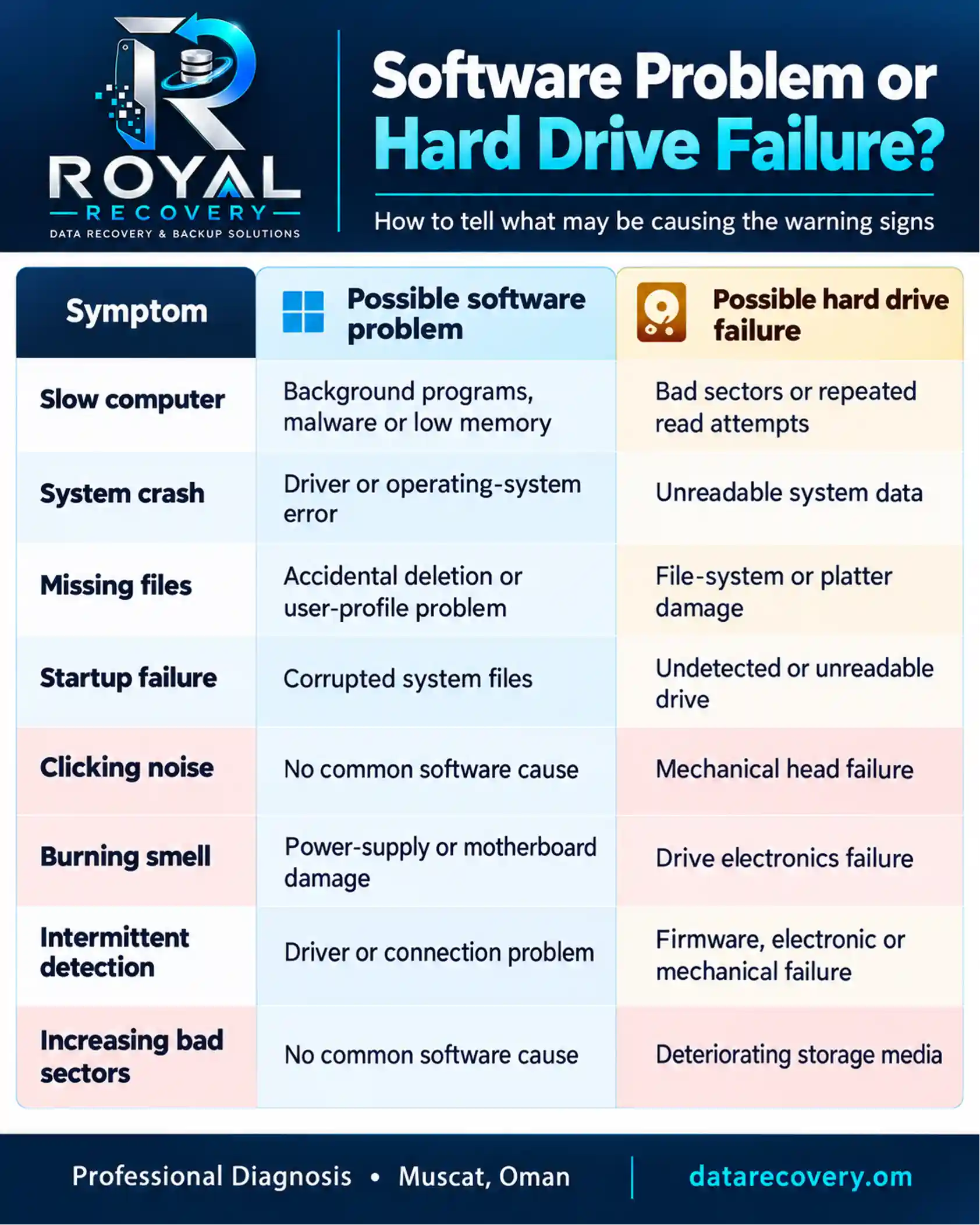
A clean operating-system installation may solve a software problem, but it can overwrite recoverable information. Do not reinstall Windows or macOS before protecting the files stored on the drive.
How Do You Test If Your Hard Drive Is Working?
Start with simple, non-destructive checks. The correct method depends on whether the drive is stable and whether the stored data is important.
Check the physical connection
For an external hard drive, test one known-compatible cable and another USB port. Connect the drive directly to the computer, not through a USB hub.
For an internal drive, loose power or data connections may cause intermittent detection. Switch off the computer before inspecting any internal connections.
Check whether the drive is detected
Look for the hard drive in:
- Windows Disk Management
- macOS Disk Utility
- BIOS or UEFI
- Windows Device Manager
- Computer boot menu
A drive may appear physically but have an unreadable partition. If you need the files, do not select Initialize, Format, Erase, or Create New Volume.
Check the SMART status
A SMART monitoring tool can display health information reported by the drive. A caution or failed status may indicate bad sectors, pending sectors, or other developing problems.
SMART is helpful, but it doesn’t guarantee anything. Some hard drives fail without warning.
Run a short diagnostic test
A manufacturer’s short diagnostic test may be appropriate when the drive is quiet, stable, and already backed up.
Avoid extended scans when the drive clicks, disconnects, freezes the computer, or contains irreplaceable files. A long surface scan can place hours of additional stress on failing hardware.
What Should You Do If Your Hard Drive Is Failing?
If the drive remains quiet and accessible, begin with the most valuable files. Prioritize personal photographs, business records, and original documents over replaceable programs and downloaded files.
The safest response depends on the symptoms:
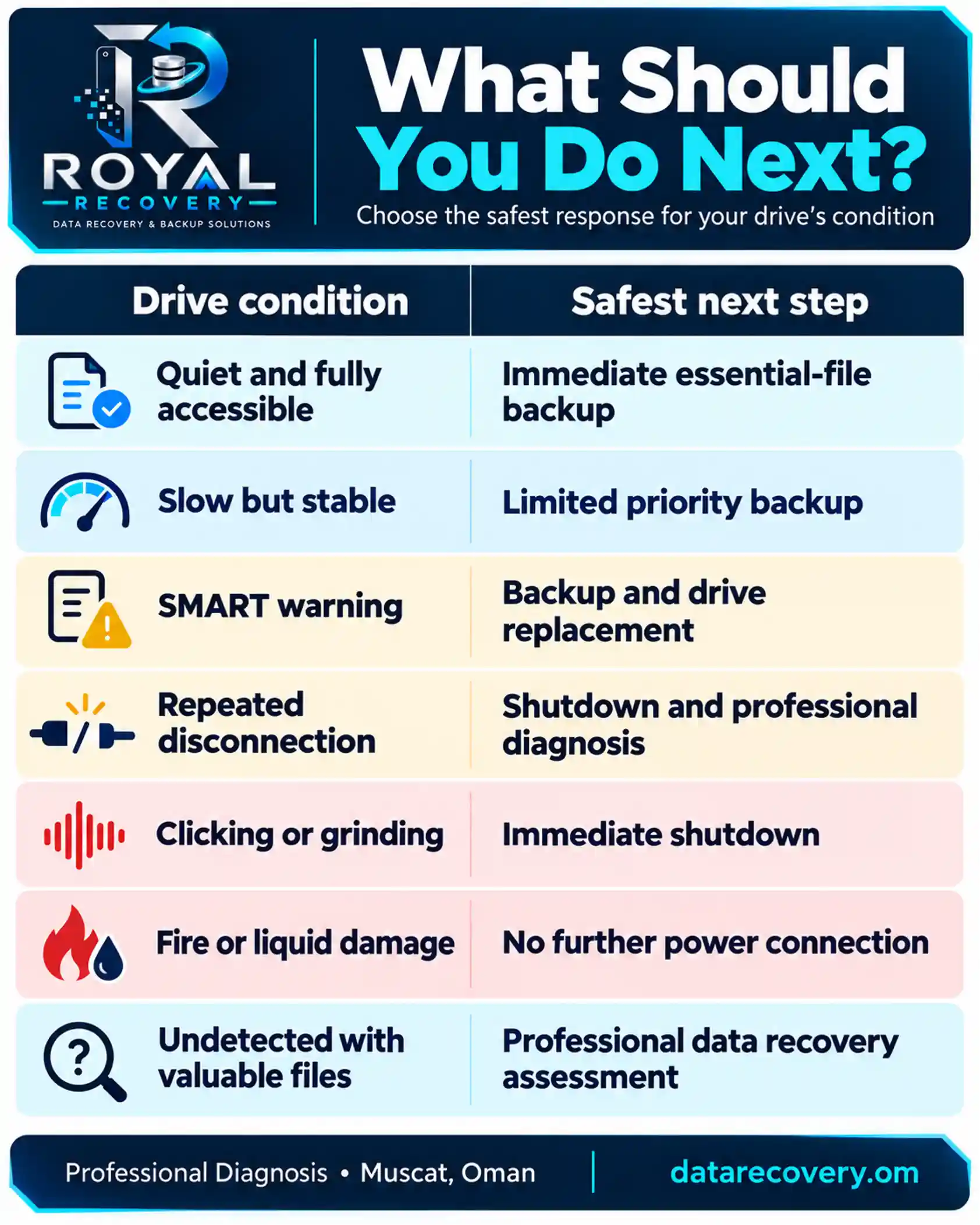
Do not use the failing drive as the destination for recovered files. Save any recovered data to a separate, healthy storage device.
What Should You Never Do With a Failed Hard Drive?
Many permanent data-loss cases begin with a well-intentioned DIY repair. The wrong action can make professional recovery more difficult, expensive, or impossible.
Avoid the following:
- Repeated power cycles
- Drive disassembly
- Freezer treatment
- Physical tapping or shaking
- Random circuit-board replacement
- Formatting or initialization
- Operating-system reinstallation
- Long surface scans
- Repeated recovery software
- Recovered files on the same drive
Never open a mechanical hard drive in a normal room. Dust particles that appear harmless to the human eye can contaminate the platter surface.
Freezing a drive is another dangerous internet myth. Condensation may enter the enclosure and create additional corrosion or platter damage.
Can a Failed Hard Drive Be Fixed?
Some hard drive problems can be temporarily repaired, but you shouldn’t automatically trust a repaired drive again.
A damaged cable, power adapter, or external enclosure may be replaceable. Logical problems involving deleted files, corrupted partitions, or accidental formatting may sometimes be handled without opening the drive.
Professional intervention may be required for:
- Read/write head failure
- Motor failure
- Circuit-board damage
- Firmware corruption
- Severe bad sectors
- Damaged partitions
- Fire or water exposure
- Dropped hard drives
In professional data recovery, repair is often only a temporary step. The purpose is to stabilise the drive long enough to create an image and recover the files—not to return the damaged drive to daily use.
Is Your Hard Drive Failing? Get Professional Help
If your hard drive is clicking, overheating, or no longer detected by your computer, the problem may require professional diagnosis. Avoid repeated restarts, formatting, or repair attempts that could put your data at further risk.
Explore our [Professional Hard Drive Repair Services] to identify the cause of the problem and determine the safest solution for your device.
Contact our specialists to discuss your hard drive issue.
Can Data Be Recovered From a Dead Hard Drive?
Yes, you can often recover data from a dead hard drive, but the outcome depends on the type and extent of the damage.
Recovery may still be possible when the drive:
- No longer receives power
- Remains undetected
- Produces clicking noises
- Contains damaged heads
- Has a failed circuit board
- Shows an unreadable partition
- Contains deleted files
- Has been accidentally formatted
Successful recovery becomes less likely when the platter surface is severely scratched, the storage media has been overwritten, or the drive has undergone repeated unsuccessful repair attempts.
Recovery software can help with certain logical problems, but it cannot repair broken heads, a seized motor, or damaged internal components. Forum discussions often show users trying recovery software on clicking drives that Windows or BIOS cannot detect; this is a physical failure, not a software-recovery job.
What Is the Average Lifespan of a Hard Drive?
A consumer hard drive typically lasts about three to five years, but that is not a guaranteed lifespan. Some drives fail within the first year, while others operate for a decade.
Hard drive lifespan depends on:
- Daily workload
- Operating temperature
- Physical movement
- Power stability
- Ventilation quality
- Manufacturing variation
- Storage environment
- Previous physical damage
A drive’s age can’t tell you exactly when it will fail. A five-year-old drive with current backups is less dangerous than a six-month-old drive holding the only copy of important files.
How Can You Reduce the Risk of Hard Drive Failure?
You can’t always prevent hard drive failure, but you can reduce the risk of permanent data loss.
Recommended protection measures include:
- Regular automated backups
- Multiple backup locations
- Reliable surge protection
- Stable operating temperature
- Adequate computer ventilation
- Careful laptop transportation
- Routine SMART monitoring
- Safe system shutdown
- Proactive aging-driven replacement
- Verified backup restoration
For important personal or business information, use the 3-2-1 backup principle: three copies of the data, two different storage types, and one copy in another physical location.
An untested backup is only a hopeful theory. Periodic restoration checks confirm you can actually recover the files.
When Should You Contact a Hard Drive Data Recovery Specialist in Stockholm?
Professional diagnosis is safer when the files matter, and the drive shows signs of physical or serious electronic failure.
Contact a specialist after:
- Repeated clicking or grinding
- Drop or impact damage
- Fire or liquid exposure
- Burning smell
- Complete detection failure
- Increasing bad-sector counts
- Severe file corruption
- Unsuccessful DIY recovery
- Failed RAID or server storage
- Loss of critical business data
Keep the drive switched off until it can be assessed. Every additional power cycle may force damaged heads across the platter surface.
Professional Hard Drive Data Recovery in Stockholm and Across Sweden
A failed computer hard drive doesn’t necessarily mean your files are permanently lost. The outcome depends on the type of failure, the condition of the storage media, and what happens after the first warning sign.
With more than 25 years of experience, specialist PC-3000 equipment, and cleanroom facilities, mService Sweden AB provides professional hard drive data recovery for private customers, companies, and organizations in Stockholm and throughout Sweden.
If your hard drive is clicking, no longer detected, or preventing your computer from starting, disconnect it and request a professional assessment. One controlled diagnosis is safer than ten desperate restarts.
Frequently Asked Questions About Failed Hard Drives
My hard drive clicks but still shows up. Can I copy the files?
Detection does not mean the drive is safe. Clicking commonly indicates a physical problem involving the read/write heads. Copying files may place additional stress on the drive and worsen platter damage. If the files are valuable, switch off the drive and arrange a professional assessment.
Can recovery software fix a clicking hard drive?
No. Recovery software can address certain logical problems, such as deleted files or damaged partitions. It cannot repair damaged heads, a failed motor, or internal mechanical damage. A clicking drive that isn’t detected needs hardware-level diagnosis. reddit.com
Should I run CHKDSK on a failing hard drive?
Not before protecting the data. CHKDSK is a file-system repair tool, not a data recovery tool. It can modify file-system structures and may place considerable stress on an unstable drive. Forum reports commonly describe CHKDSK becoming stuck when a drive contains serious bad sectors. superuser.com
Can formatting repair bad sectors?
Formatting may mark some unreadable areas as unavailable, but it does not physically repair damaged storage media. A drive with increasing bad sectors should be replaced rather than trusted with valuable data.
Why does my hard drive appear and disappear?
Intermittent detection may result from a faulty cable, weak power supply, damaged enclosure, firmware problem, or internal drive failure. Checking the cable and port is a reasonable first step. Repeated disconnections after that point require proper diagnosis.
Is a SMART “Caution” warning serious?
Yes. A caution status usually indicates reallocated, pending, or uncorrectable sectors. The drive may keep working, but it shouldn’t remain the only place for important data. Back up accessible files and replace the drive.
Can I put a failed hard drive in the freezer?
No. The freezer method is outdated and dangerous. Condensation can form inside or around the drive, creating corrosion and additional damage. It may turn a recoverable drive into an unrecoverable one.
Can I replace the circuit board myself?
A matching circuit board alone is often insufficient. Many modern hard drives contain unique adaptive or calibration information on the original board. A specialist may need to transfer or reconstruct this information before the replacement board can communicate correctly with the drive.
Should I keep restarting the computer to make the drive appear?
No. Repeated restarts power the drive and force it to try to initialize. With damaged heads or platters, each attempt can create additional media damage.
My hard drive fell but still works. Is it safe?
Not automatically. Back up the files immediately, then monitor the drive for clicking, disconnections, slow access, or SMART warnings. If clicking began after the fall, stop using it. Data-recovery discussions consistently treat clicking after a drop as evidence of likely physical damage. Salvagable?
Can I keep using a drive after recovering the files?
Replace a drive that has suffered mechanical failure, increasing bad sectors, or serious electronic damage. Data recovery returns the files; it does not restore the drive’s long-term reliability.
How much data can be recovered from a dead hard drive?
The recoverable amount depends on the failure. Logical damage may allow nearly complete recovery, while scratched platters or overwritten sectors may result in partial recovery. No responsible specialist can guarantee the result before examining the drive.